How to record a Breakout Room session
Learn how to start and stop a Breakout Room recording in SpatialChat, then find, play, and download your video in SpatialChat Studio.
Record your Breakout Room session directly in SpatialChat, then access the video from your team’s dashboard.
Before you start
- Sign in as a Space Admin and enter the Breakout Room you want to record.
- Check that the recording control is available in the bottom toolbar.

- Let participants know you are about to start recording.
Start recording
- Locate the recording icon in the bottom toolbar. Hover over it to see Start recording.
- Click Start recording.
- Wait for the Recording started notification.
- Confirm that the REC indicator and recording timer appear at the top of the room.
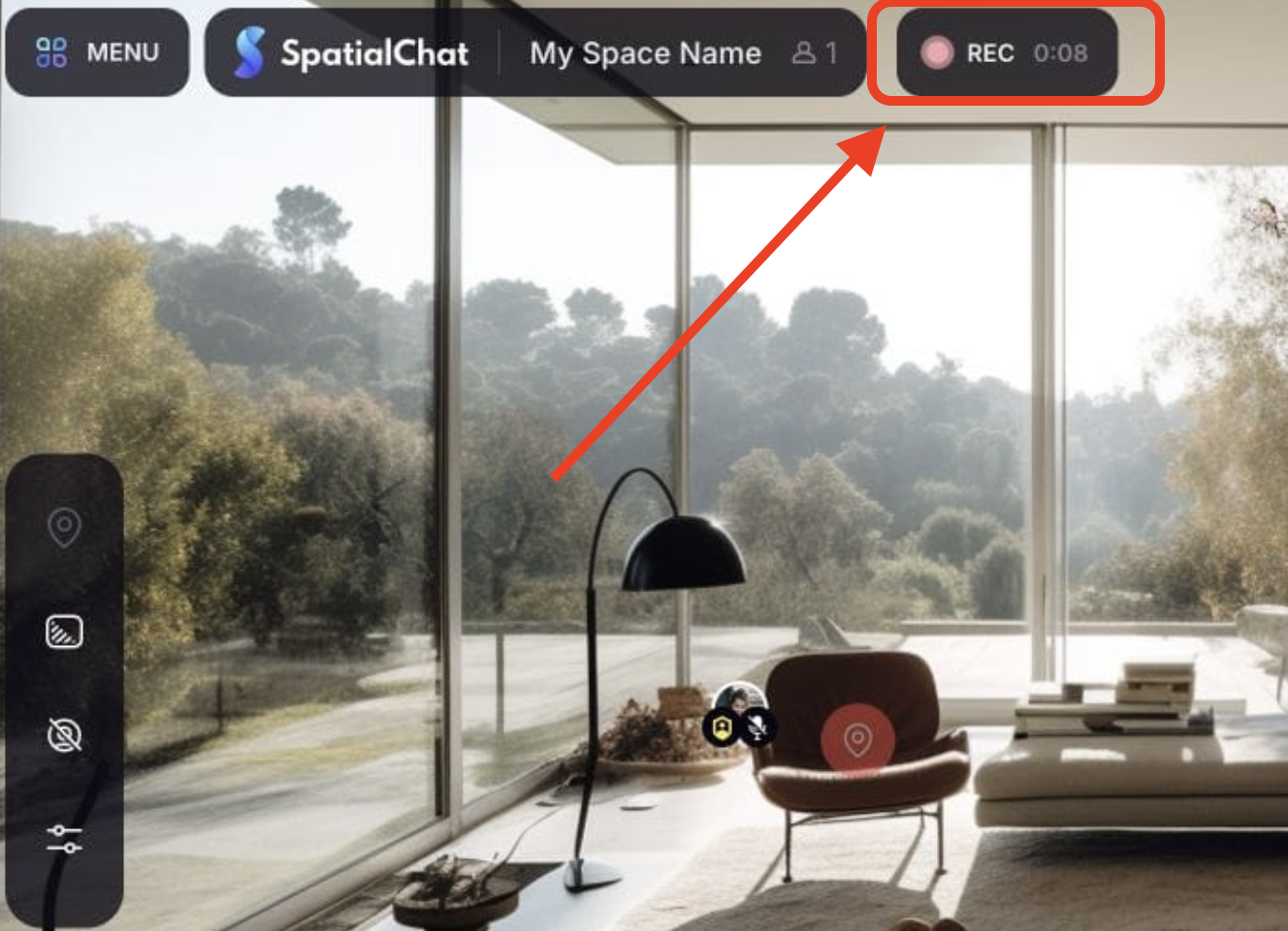
The recording begins directly after you click the button. Wait for the confirmation before starting the part of the session you want to capture.
Stop recording
- Click the recording icon again. While recording is active, its label changes to Stop recording.

2- A confirmation window appears: Stop recording?
3- Click STOP to finish, or Cancel to continue recording.
4- Wait for the REC indicator to disappear and the control to return to Start recording.
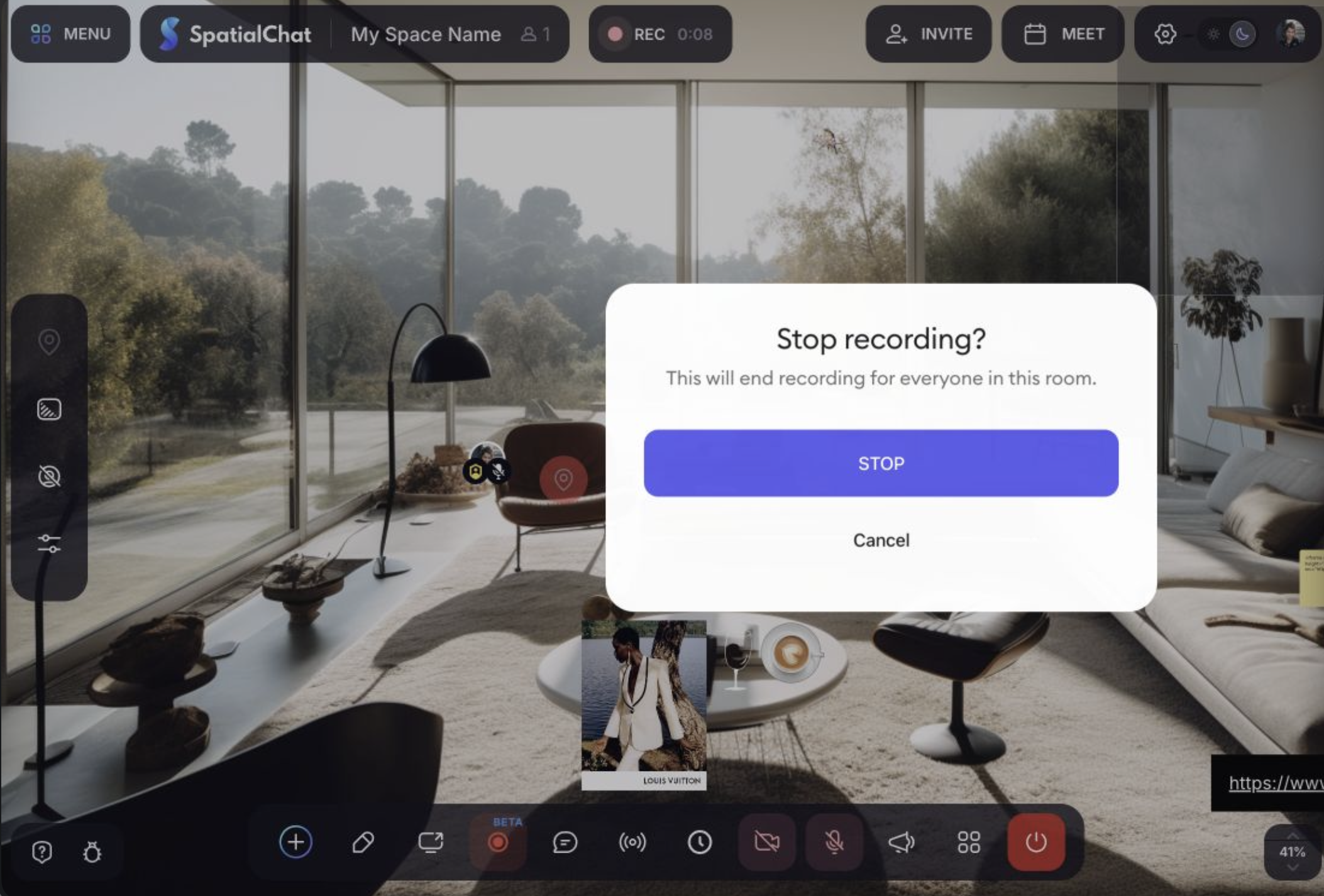
Note: Stopping the recording ends it for everyone in that room.
Find and download your recording
- Open your SpatialChat dashboard.
- Select the team associated with your Space.
- Open SpatialChat Studio and select Recordings.
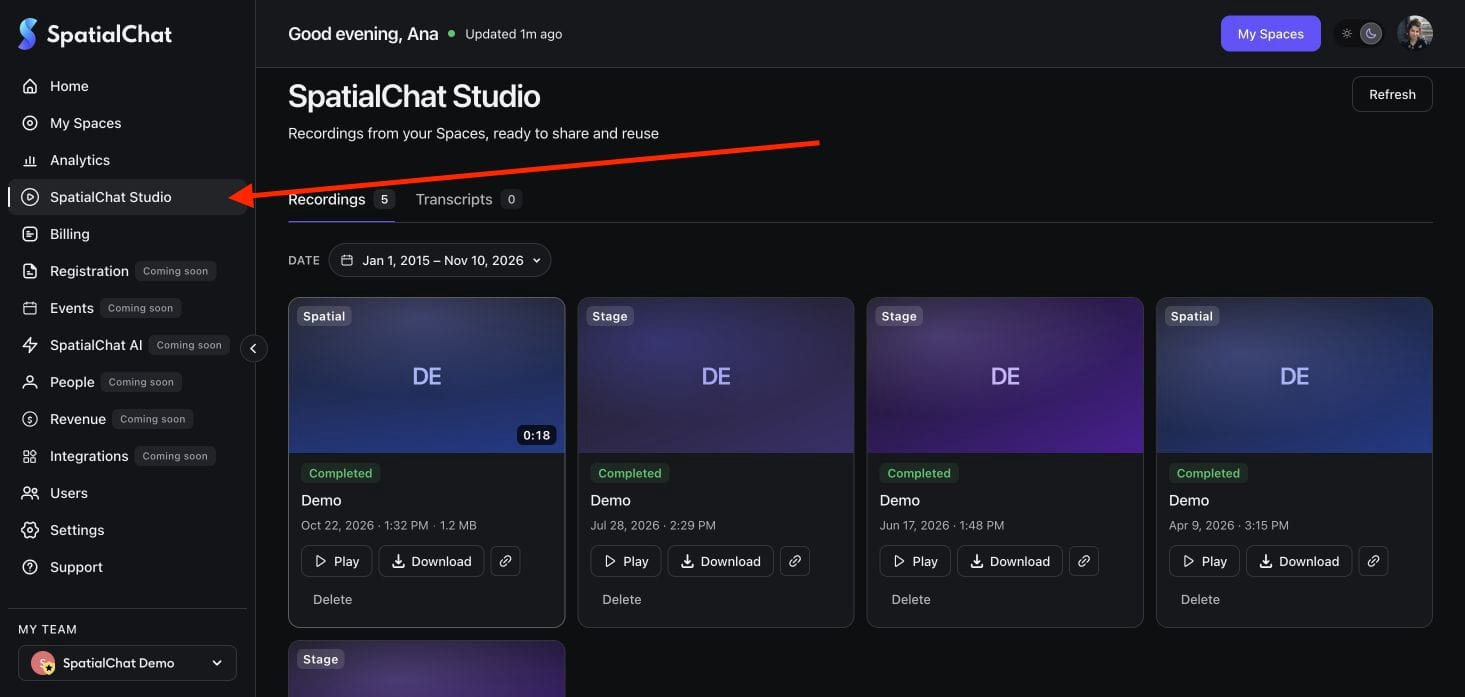
- Set the date range to include the day of your session.
- Find the recording using its Space name and recording date.
- Once processing is complete, use Play to review it or Download to save a copy.
If the recording does not appear immediately, click Refresh and check the date filter.
Troubleshooting
I cannot see the recording button.
Check that you are signed in with the appropriate administrator account. Ask your team administrator to confirm that recording is available for your team.
The button says “Starting recording…” or “Stopping recording…”.
Wait for the operation to finish. Use the REC indicator and the button’s label to confirm the recording state.
I cannot find the video.
Check the selected team, Space name, date range, and processing status in SpatialChat Studio.
For more information, see Your guide to the SpatialChat dashboard.