Member Badge
When someone enters a busy event, classroom, or community space, it should be easy to identify the people who can help. SpatialChat’s new Member Badge feature gives participants an immediate visual cue, distinguishing members of the organization from guests.
Once the feature is enabled, a white badge appear beside a participant’s avatar and name in rooms and chat. They remain discreet, but are visible exactly when someone needs to find a host, teacher, moderator, or support person.
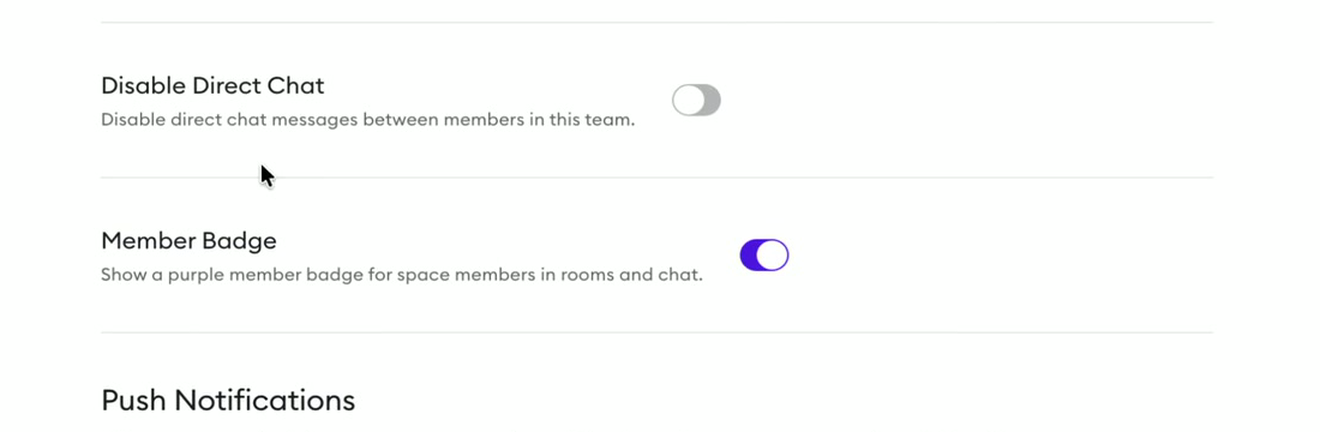
Enable Member Badge from the Team Dashboard
A Team Admin can turn on Member Badges at the Team level:
- Open the SpatialChat Dashboard.
- Select the relevant Team.
- Open Settings.
- Scroll down to Member Badge.
- Turn on the toggle.
The setting applies the Member Badge across the Team’s Spaces and displays it in rooms and chat. This is especially useful when the same staff, faculty, or organizing team works across several Spaces.
Enable Member Badge in a Specific Space
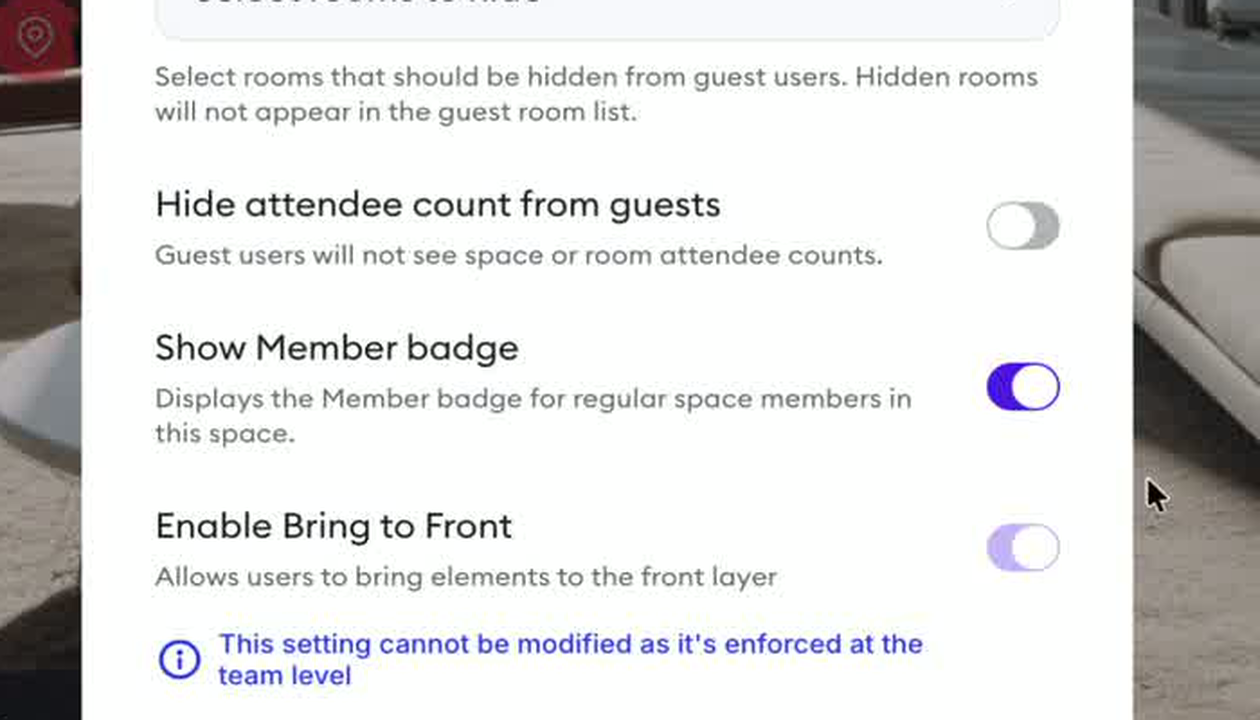
The feature can also be activated for an individual Space:
- Enter the Space as an Admin.
- Click the gear icon to open Space Settings.
- Scroll down to Show Member badge.
- Turn on the toggle and save the changes.
This option works well when visible identification is needed for one particular event or environment without changing the rest of the Team’s Spaces.
What the Badge Colors Mean
The badge reflects a participant’s existing role. Activating the feature does not promote users or give them additional permissions.
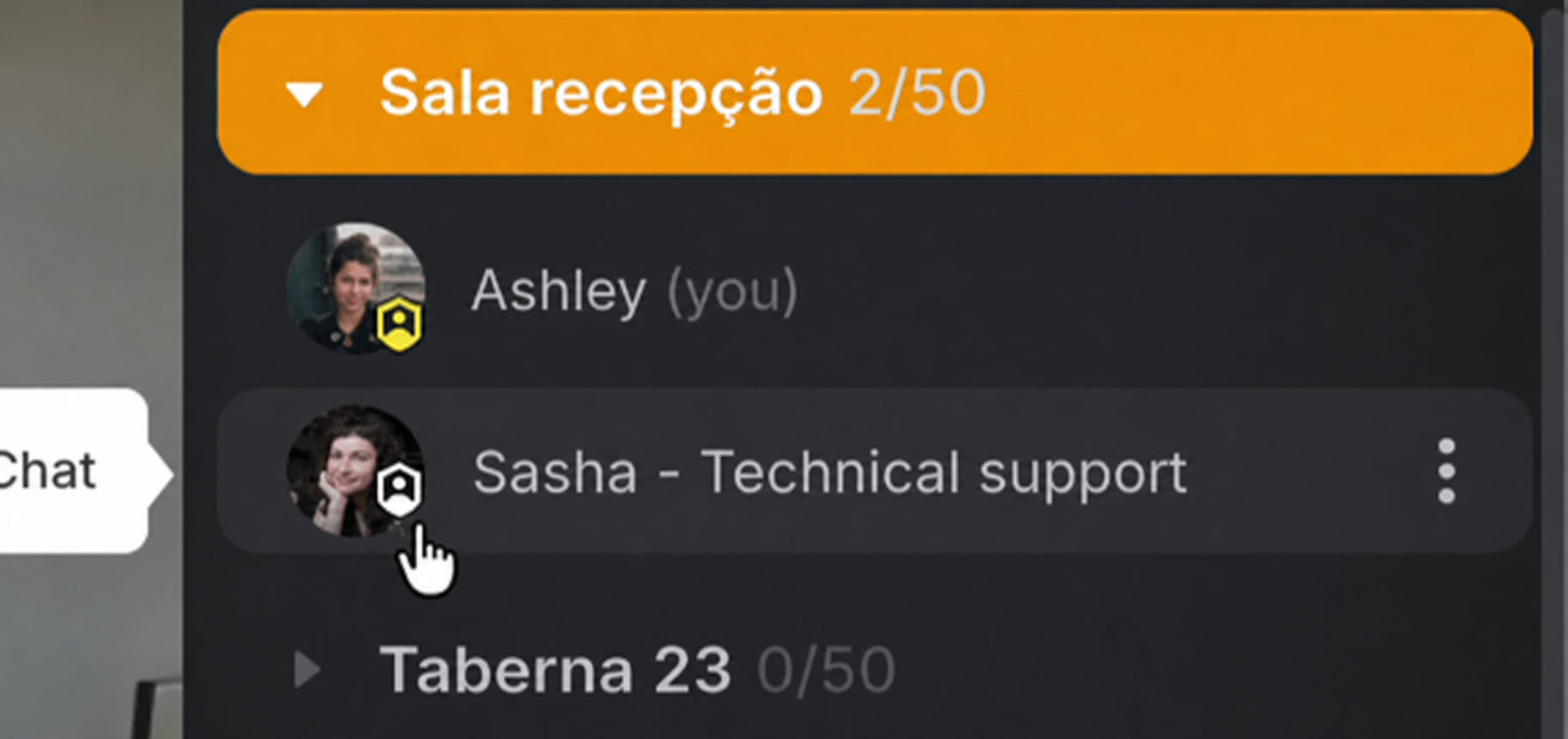
- White badge — Member: the participant has been formally added as a regular Member of the Space or Team.
- Blue badge — Space Moderator: the participant can assist with moderation during the session, including managing participants and shared content.
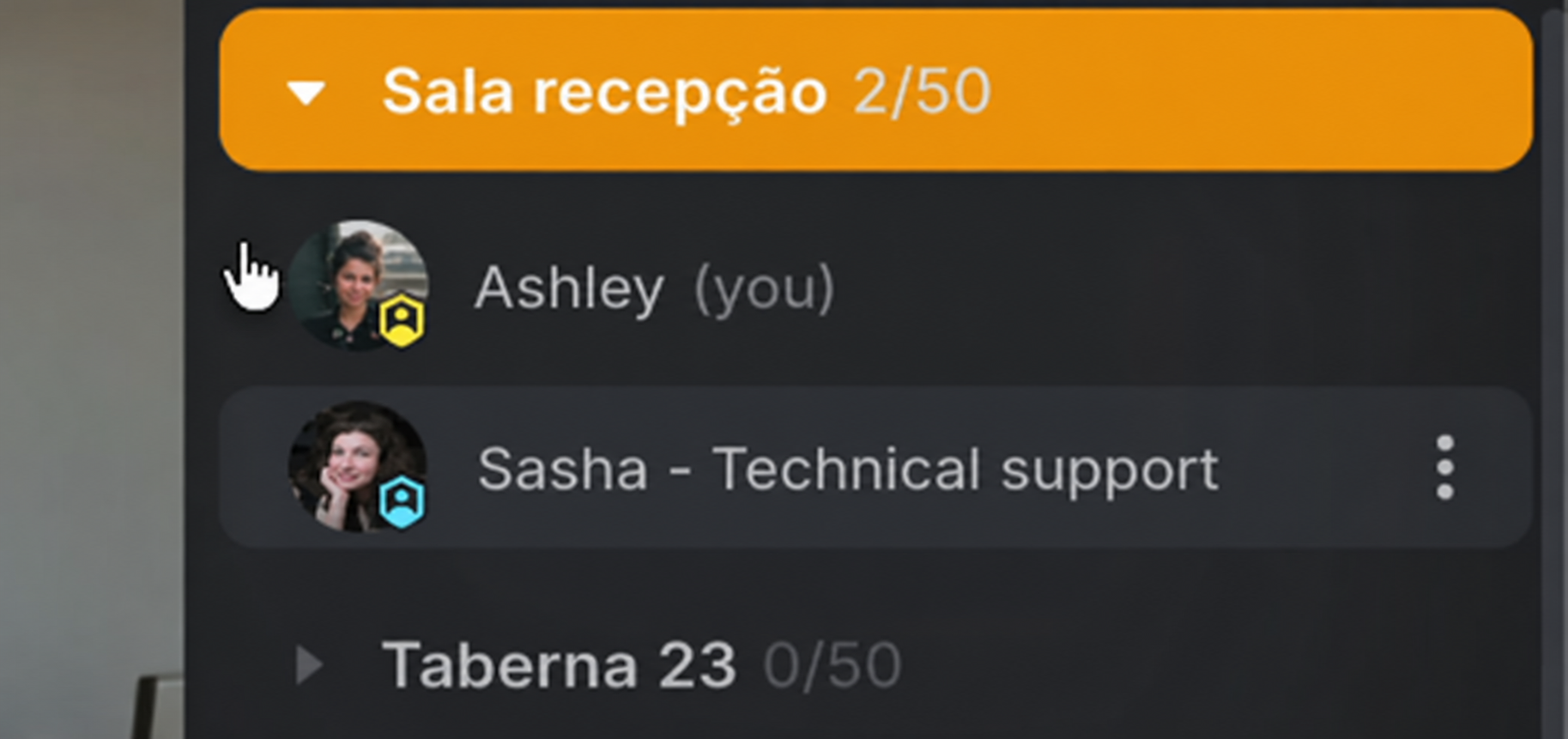
- Yellow badge — Team Admin: the participant has administrative control over the Team and its Spaces.
- No Member Badge — Guest: the participant entered as a Guest and has not been added as a regular Member.
In the example below, the Team Admin has a yellow badge and the regular Member has a white badge.
SpatialChat uses separate roles for Team Admins, Space Admins, Space Moderators, Members, and Guests. For a complete permission breakdown, see the official User Roles Comparison.
When a Member Becomes a Moderator
An Admin can promote a participant during a live session. Open the participant’s menu and select Promote to Moderator.
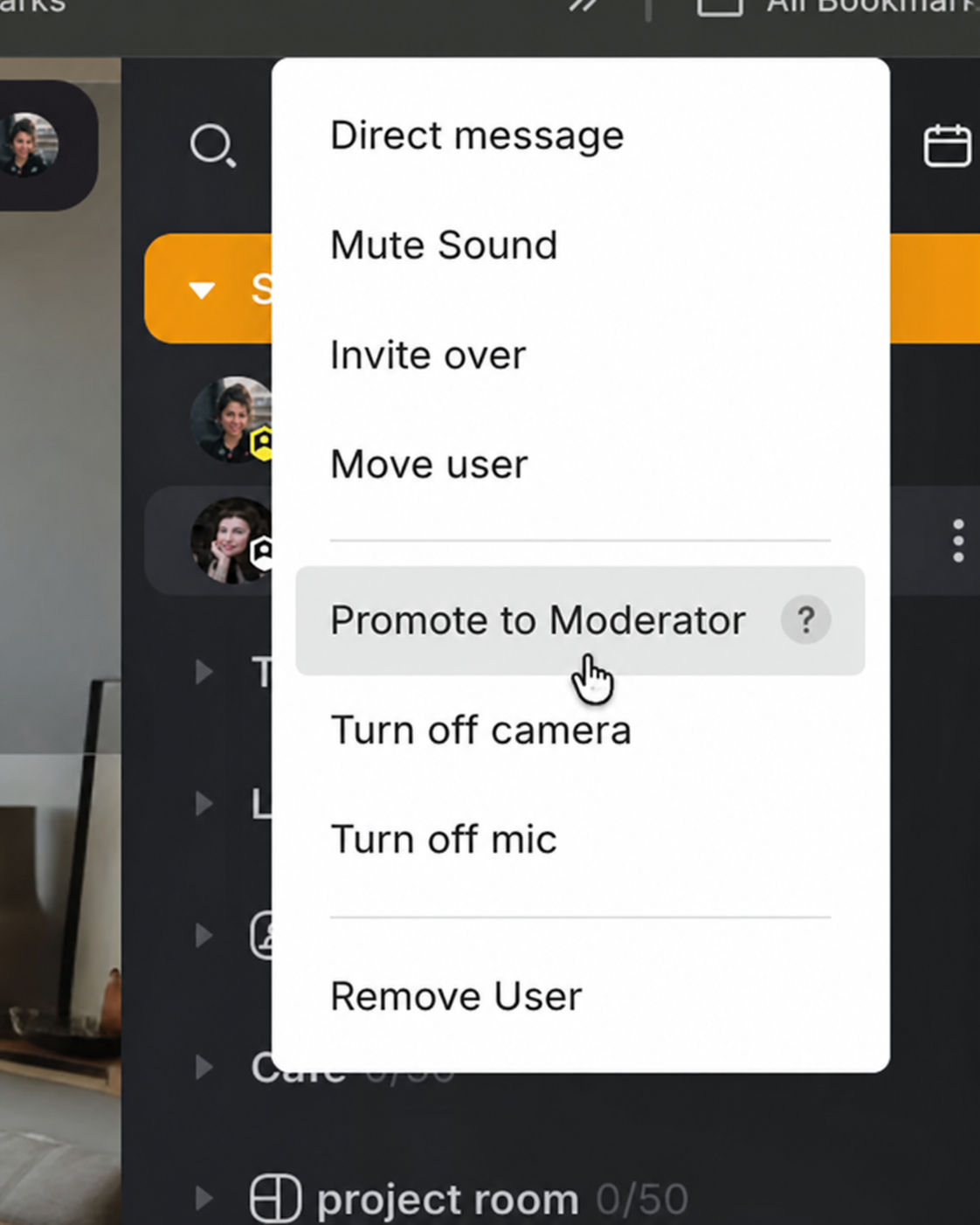
The badge immediately changes from the Member badge to blue, allowing everyone in the Space to recognize the participant’s new moderation role.
Managing Members and Roles
Member Badges mirror the roles configured in SpatialChat. To review or change them, open the Team in the Dashboard, go to Users, find the participant, and check their assigned role and Space access.
Only invited Team Members can receive permanent roles. People entering through a public link remain Guests unless they are formally added. More information is available in How to Invite Users.
A Small Badge That Makes a Space Easier to Navigate
Member Badge is particularly useful for conferences, hybrid events, classrooms, onboarding sessions, and community Spaces. Guests can quickly find the right person, while organizers gain a simple way to make their team visible without interrupting the experience.
It is a small addition to the interface, but it makes every Space feel clearer, safer, and more welcoming.