Pass the Mic in Stage Rooms
The Pass the Mic feature allows moderators to temporarily give an attendee permission to speak during a Stage session. It is useful for Q&A sessions, live discussions, panels, classes, and any event where guests should be able to participate without becoming permanent speakers.
With Pass the Mic, attendees can raise their hand, moderators can manage the request queue, and selected guests can accept or decline the invitation to speak.
How Pass the Mic works
In a Stage Room, attendees normally join as listeners. When they want to speak, they can raise their hand and wait for a moderator to approve their request.
Once approved, the attendee receives a prompt inviting them to speak. If they accept, their microphone is enabled and they can talk to the room.
When to use Pass the Mic
Pass the Mic is ideal for:
- Q&A sessions
- Live classes
- Webinars
- Town halls
- Panel discussions
- Community events
- Workshops
- Open floor discussions
It helps moderators keep the conversation organized while still allowing guests to participate.
For attendees: How to raise your hand
- Join the Stage Room.
- Click the Raise Hand option.

- Wait for a moderator to review your request.
- If the moderator calls on you, a pop-up will appear saying:“You are being called on”

- Click Speak to take the mic.
- Click Decline if you do not want to speak.
When you click Speak, you will be able to talk to the Stage audience.
For moderators: How to manage raised hands
When an attendee raises their hand, a notification appears in the left-side toolbar. The number badge shows how many people are currently waiting.
To open the queue:
- Click the Raised Hands / Stage Request icon in the left toolbar.
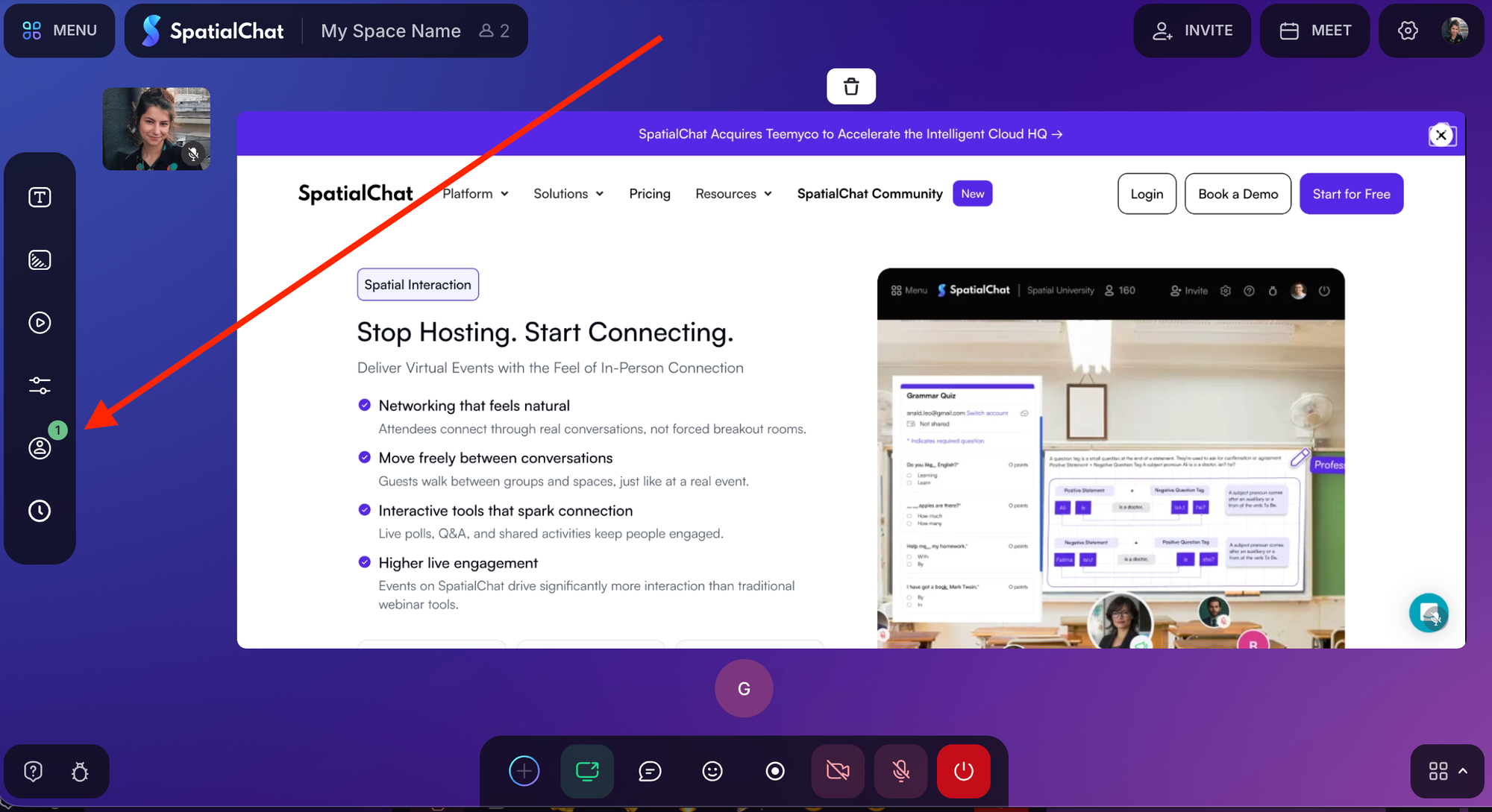
- The Stage request window will open.
- You will see the list of attendees who raised their hands, in request order.
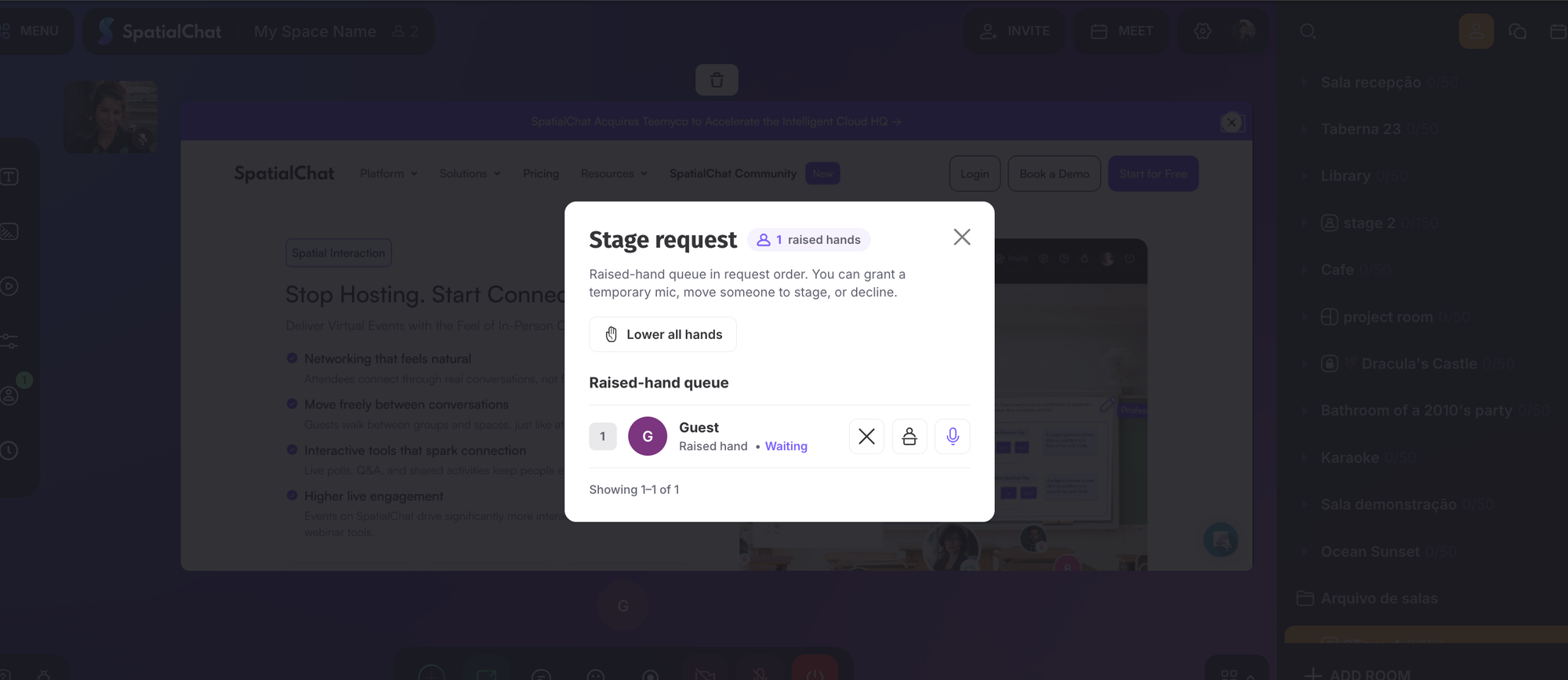
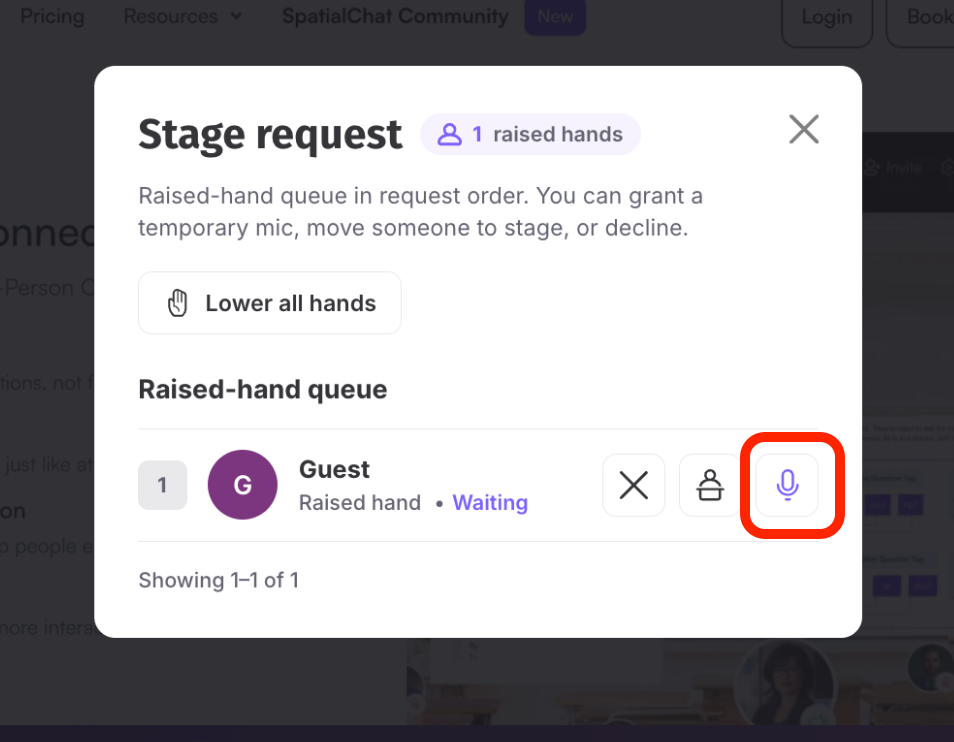
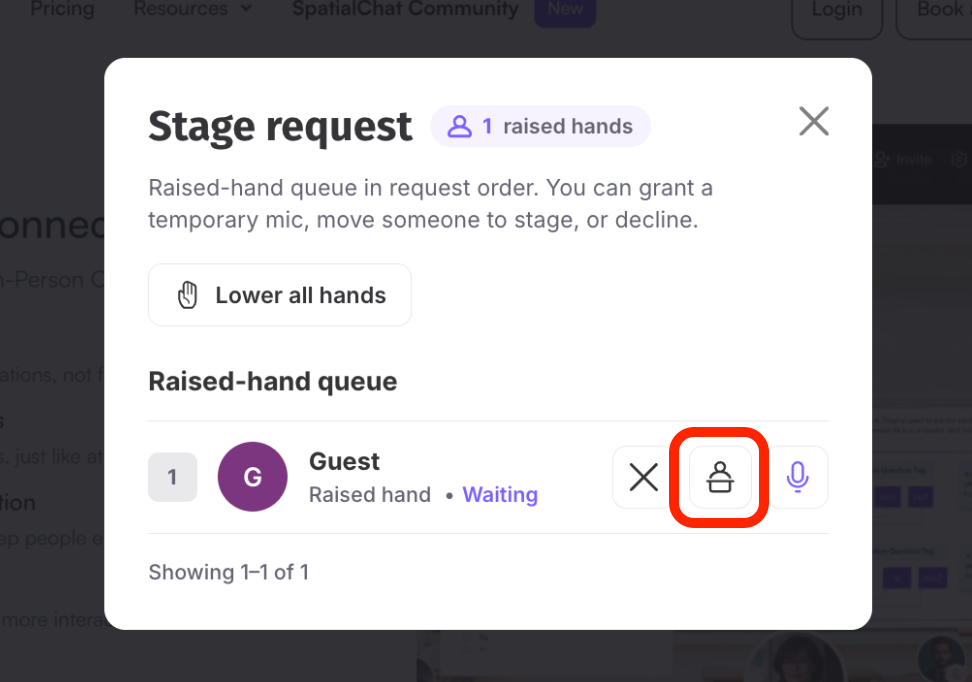
From this panel, moderators can:
- See who is waiting to speak.
- Grant temporary microphone access.
- Move a guest to the Stage.
- Decline a request.
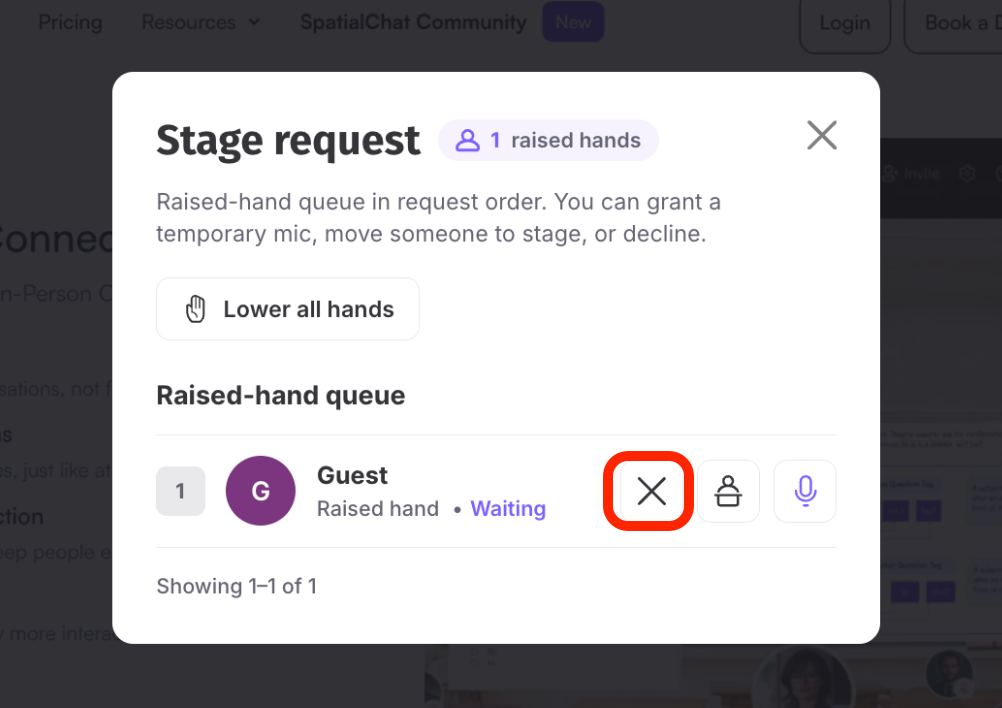
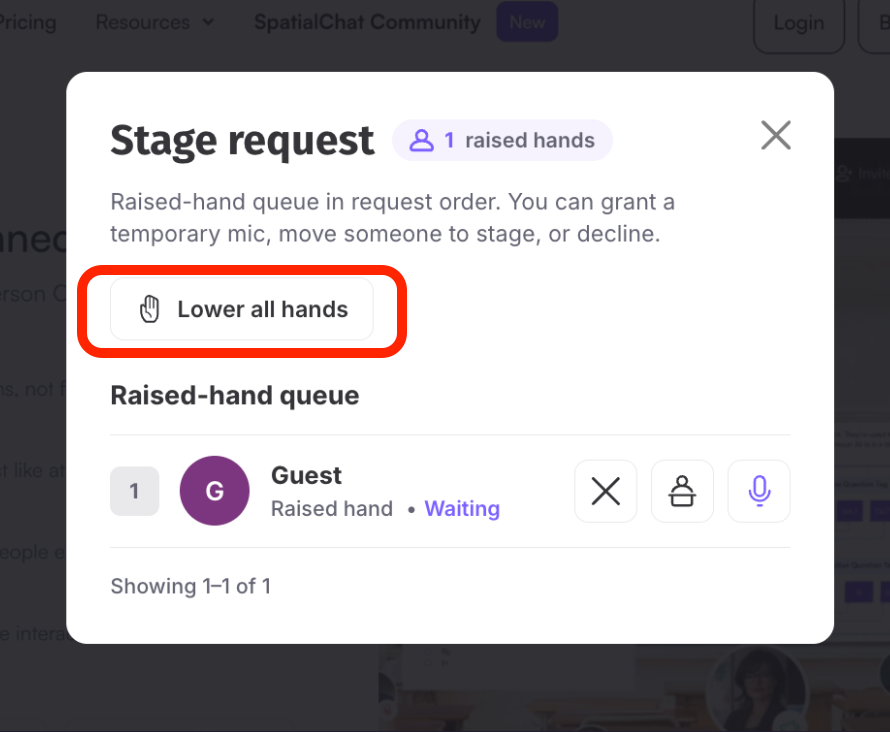
- Lower all raised hands at once.
Calling on an attendee
To invite an attendee to speak:
- Open the Stage request window.
- Find the attendee in the raised-hand queue.
- Click the action button to call on them or give them microphone access.
- The attendee will receive a pop-up asking them to speak.

- Once they click Speak, they can talk to the room.
The attendee can also choose Decline if they do not want to speak.
Notes
- Only moderators or users with the correct permissions can approve raised-hand requests.
- Attendees must accept the prompt before they can speak.
- If an attendee declines the invitation, they will remain as a listener.
- The raised-hand queue helps moderators manage requests in order.
- Pass the Mic is designed for Stage Rooms.