Polls and Q&A for Stage rooms
Make your Stage sessions more interactive with built-in Polls and Q&A.
Participants can submit and upvote questions, while hosts can manage the conversation, launch live polls, collect votes, and share results, all without leaving the room.
Where to find Polls and Q&A
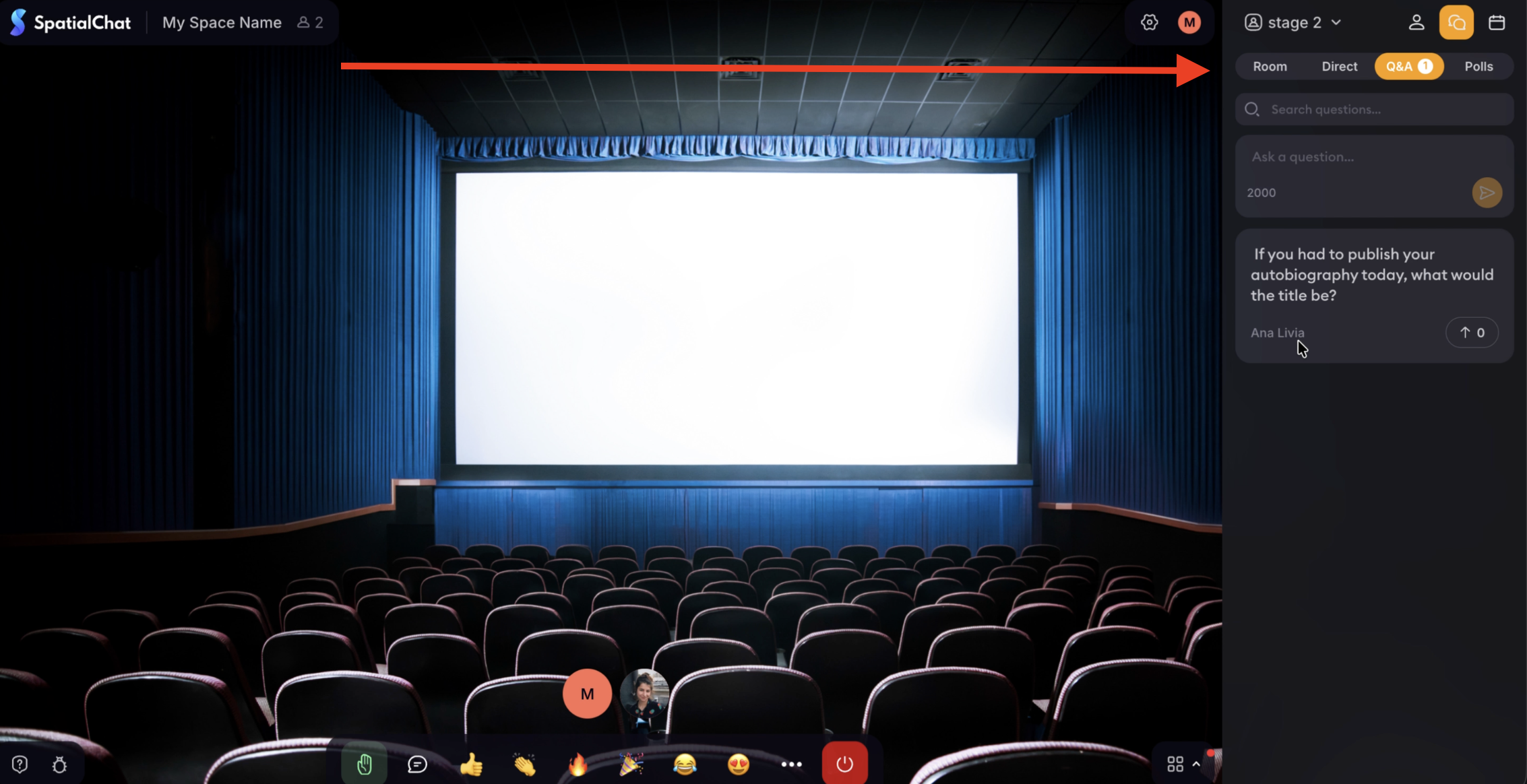
In a Stage room, open the panel on the right side of the screen. At the top, you’ll find the Q&A and Polls tabs alongside the Room and Direct chat tabs.
Using Q&A
Ask a question
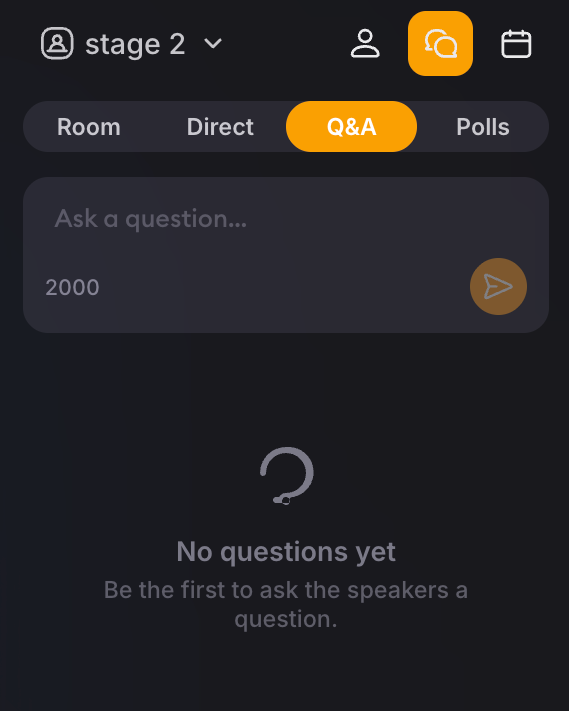
- Open the Q&A tab.
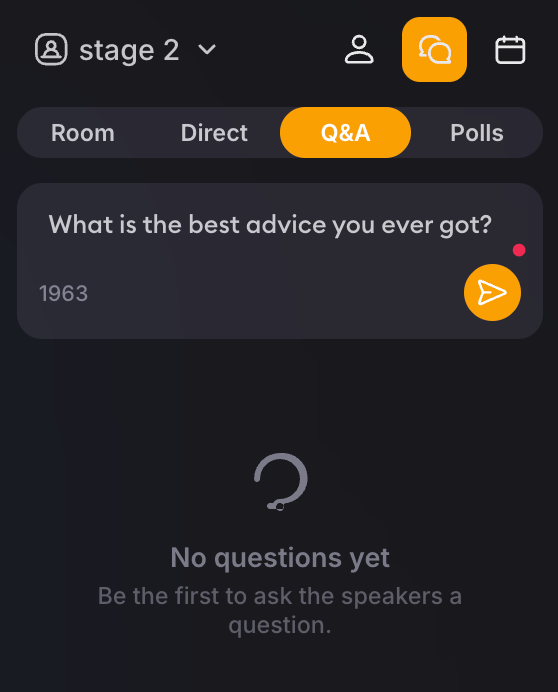
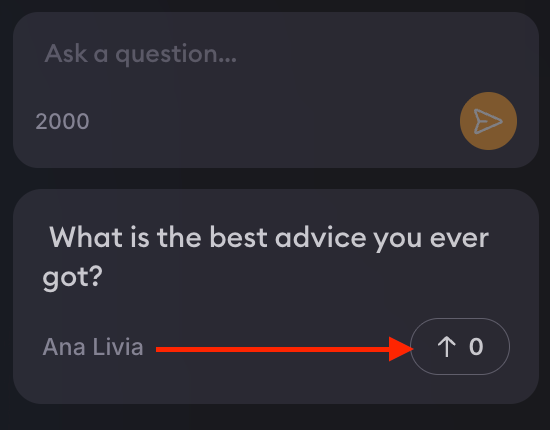
- Type your question in the Ask a question... field.
- Click the arrow button to submit it.
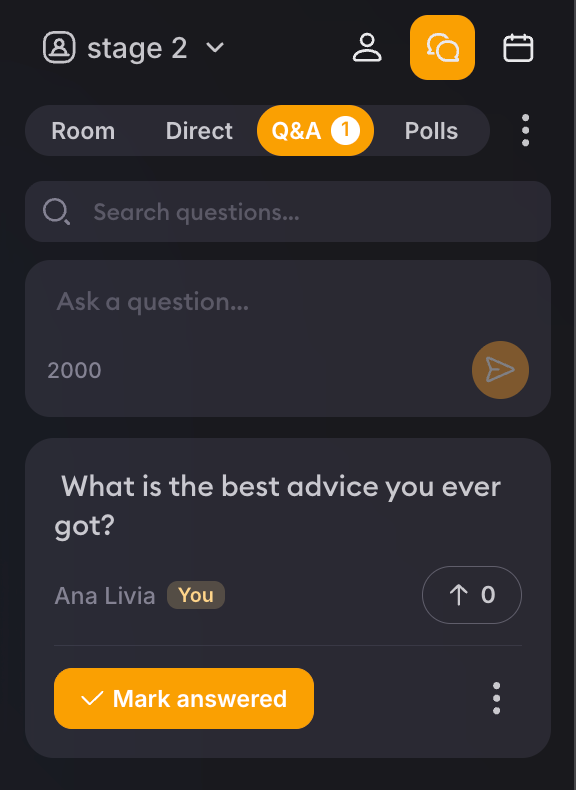
Your question will appear in the Q&A feed, where participants can upvote it. The vote count makes it easier for speakers and moderators to see which questions are getting the most attention.
Upvote a question
To upvote a question, click the up arrow next to it. The number beside the arrow shows how many upvotes the question has received.
You can also use the Search questions... field to quickly find a specific question when the list gets longer.
Manage questions
If you have moderation controls, you can keep the Q&A organized as the session moves forward.
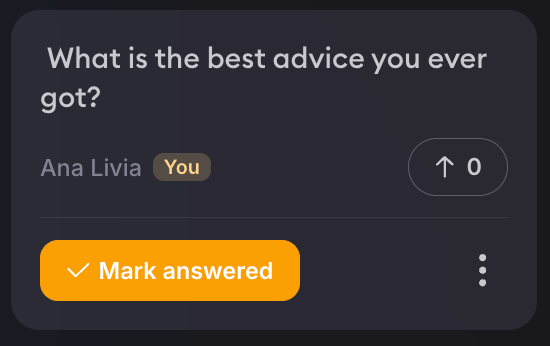
Click Mark answered after a speaker has addressed a question. The question will then display an Answered label.
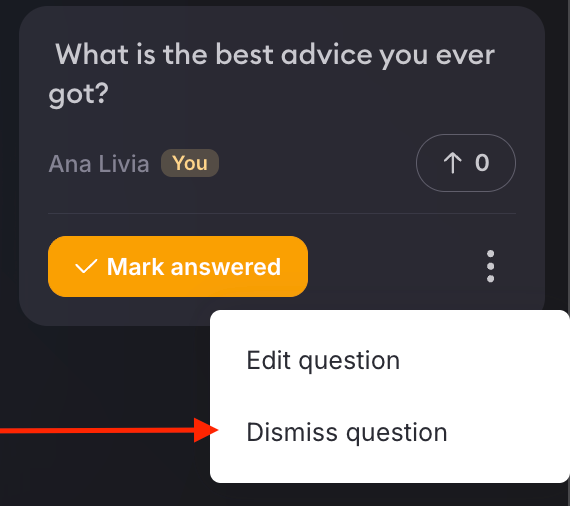
You can also open the three-dot menu and select Dismiss question to remove a question from the active Q&A list.
Using Polls
Create a poll
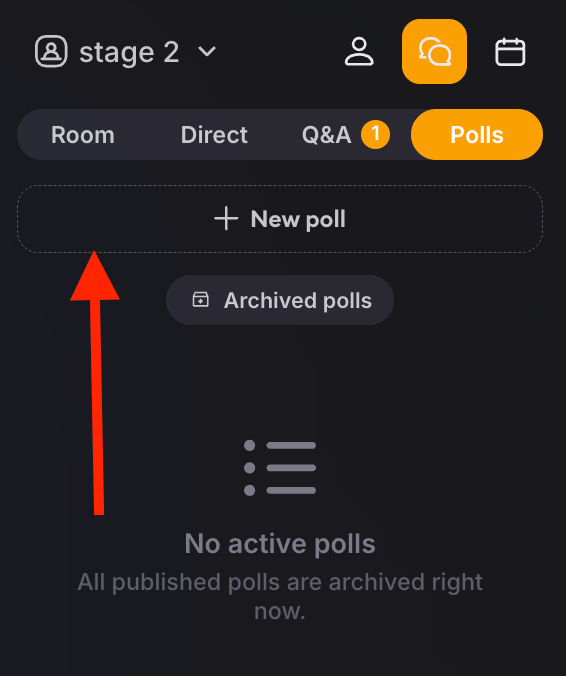
- Open the Polls tab.
- Click + New poll.
- Under Question type, choose Single choice for one answer or Multiple choice to let participants pick one or more options. Enter your poll question.
- Add at least two answer options. Click + Add option for additional choices. For Multiple choice, use Answers allowed to keep No limit or set a maximum, such as Up to 2.
Optional: set a timer or create a quiz
Before creating the poll, use Poll timer to choose No timer, 30 seconds, 1 minute, 2 minutes, 5 minutes, or 15 minutes. A timed poll closes automatically when its countdown ends.
To create a quiz, mark the correct answers using the checkmark beside each answer option. A Multiple choice quiz can have more than one correct answer. Correct answers are shown when you reveal the results.
Save and launch your poll
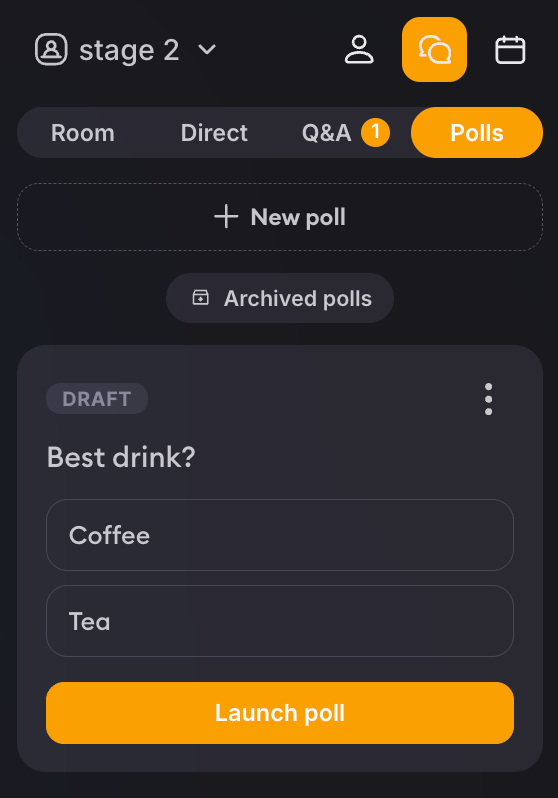
Click Create poll to save your poll as a Draft. You can review it before participants see it. From the three-dot menu, choose Edit poll to change the settings, then Save changes, or Delete poll to remove the draft.
When you’re ready, click Launch poll to make it live.
Vote in a poll
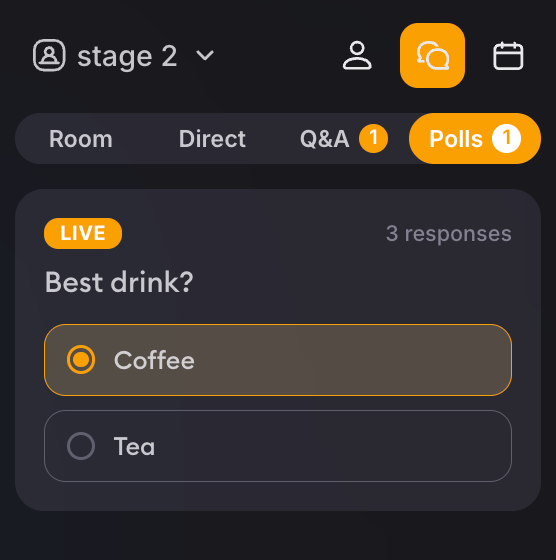
Once a poll is live, open the Polls tab to vote. In a Single choice poll, select one answer. In a Multiple choice poll, select the checkboxes for your answers. Your selections are saved automatically, without a submit button. You can select or unselect options while voting is open. If you reach the answer limit, unselect an option before choosing another. Clearing all selections removes your response.
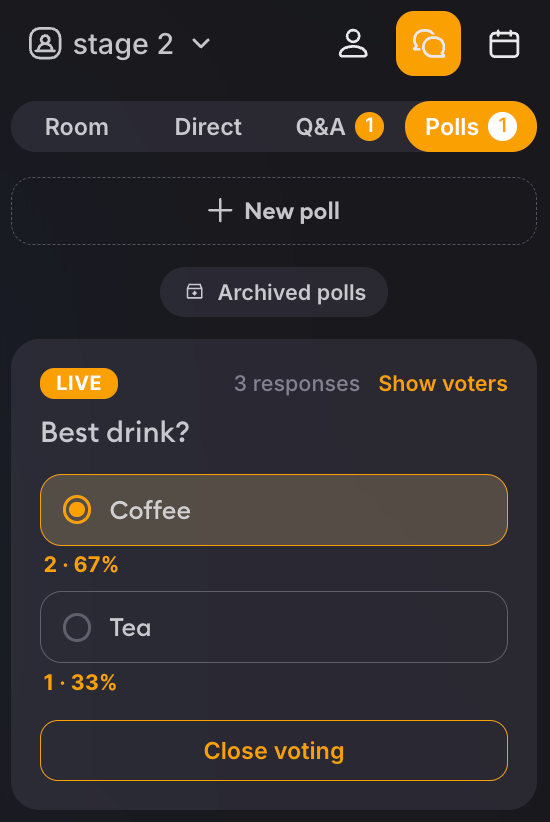
While voting is open, hosts can monitor responses in real time. Each participant counts as one response, even when they select several options. Each option’s percentage reflects the share of respondents who selected it, so the percentages in a Multiple choice poll can add up to more than 100%. For example, if one participant selects two options, both options show 100%, with one response in total.
Close voting and reveal the results
Click Close voting to end the poll manually. If you set a timer, voting closes automatically when the countdown ends. The poll is marked Closed and stops accepting changes. Closing voting does not automatically reveal the results.
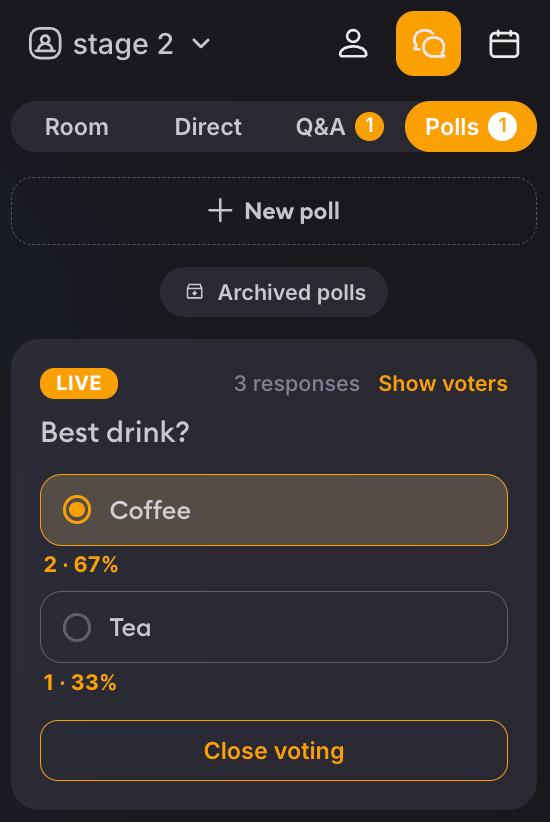
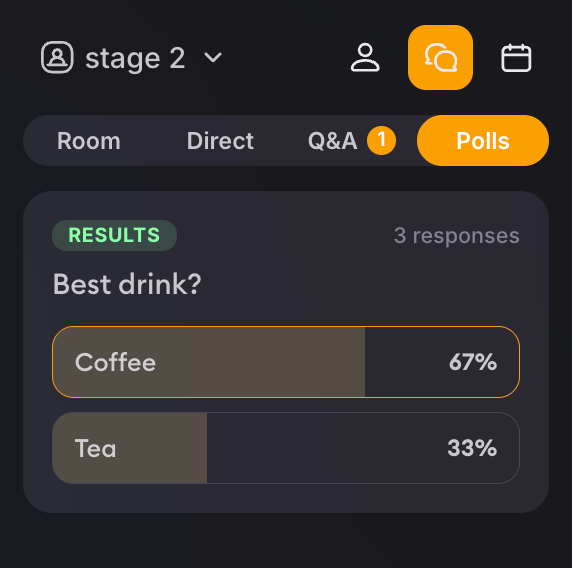
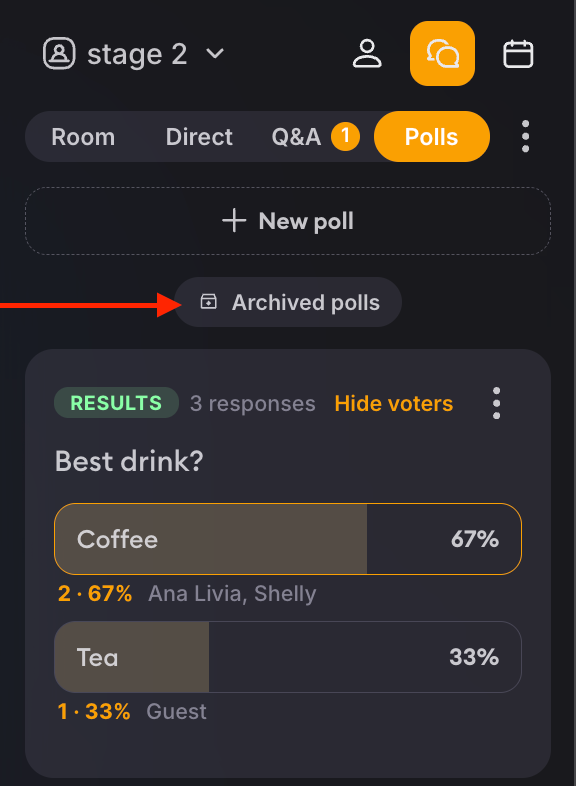
Click Reveal results to share the final results with participants. For quizzes, the correct answers are highlighted when results are revealed. Hosts can use Show voters / Hide voters to display or hide the names associated with each option. In a Multiple choice poll, the same participant can appear under several options.
To reuse a poll, open its three-dot menu and select Run poll again. This creates a new Draft with the same question and settings while keeping the previous results. When you have finished with a poll, select Archive poll from its menu. Open Archived at the top of the Polls tab to see archived polls, then select Back to active polls to return.
Q&A makes it easier to surface the questions your audience cares about most, while Polls give you a quick way to collect feedback and check the room in real time. Both tools live directly in the Stage room, so you can keep the conversation moving without switching platforms or interrupting the session.