Streaming SpatialChat through OBS
Last updated: December 2025
This guide explains how to stream your SpatialChat Space using OBS Studio (Open Broadcaster Software).
OBS Studio allows you to stream or record your SpatialChat event with high-quality audio and visuals. This is useful for:
- Broadcasting your SpatialChat event to platforms like YouTube, Twitch, LinkedIn Live, or Facebook Live
- Recording sessions, workshops, or interviews happening inside a SpatialChat room
- Using SpatialChat as a virtual stage or talk-show environment
This guide covers the simplest and most reliable way to stream: capturing your SpatialChat tab or window via OBS.
What You Need
- A SpatialChat Space (Stage or Room) ready to broadcast
- OBS Studio installed → https://obsproject.com
- Google Chrome browser
- A stable internet connection
1️ Open SpatialChat in Google Chrome
- Go to your Space: https://app.spatial.chat
- Enter the room or stage you want to stream.
Make the browser window the size you want to capture (1080p recommended for best quality).
Prepare OBS Studio
- Open OBS Studio
- Create or select a scene
- Add a new source to show your SpatialChat tab
Add Chrome as a Source (Window Capture Method)
This is the most stable and recommended method.
Step-by-step
- In OBS → click Sources → + → Screen Capture, Window Capture or Application Capture
- Name it (ex: “SpatialChat Window”)
- Choose the Chrome window that contains SpatialChat
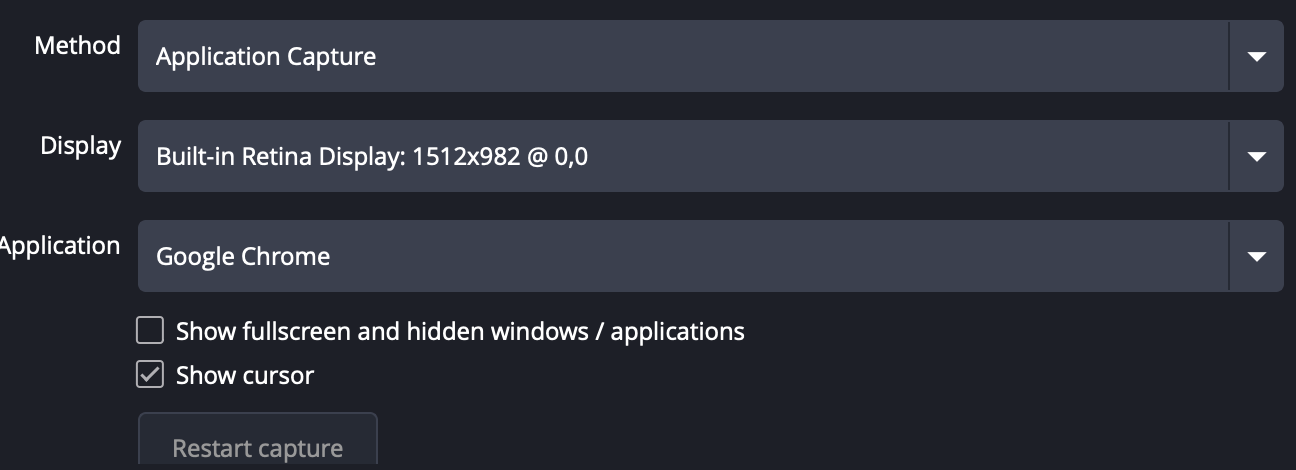
Click OK
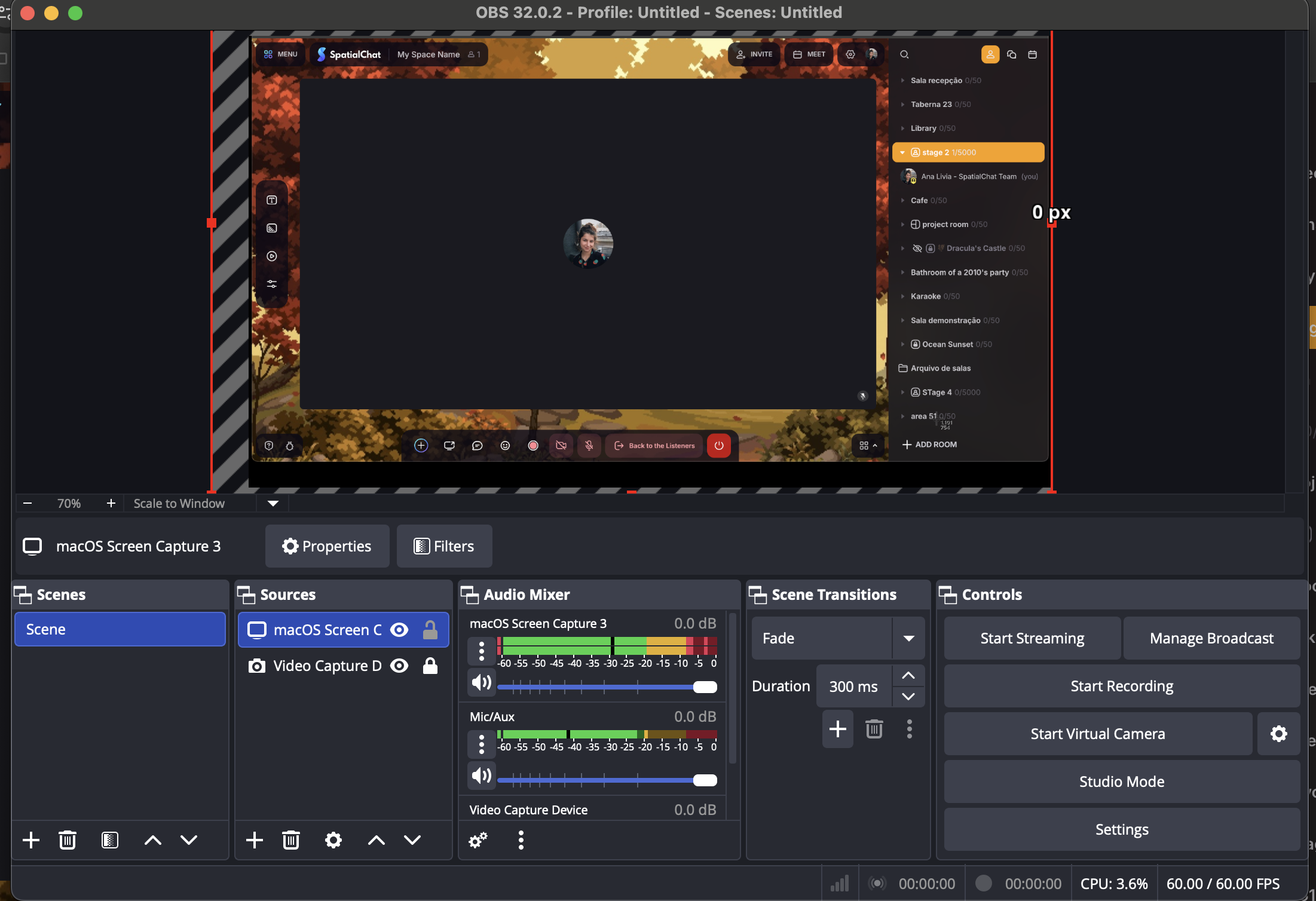
- Resize or crop the window as needed
- Hold ALT while dragging corners to crop just the SpatialChat area
If Chrome Window Doesn’t Appear
You may need to disable hardware acceleration in Chrome:
- Chrome → Settings
- System
- Disable Use hardware acceleration when available
- Restart Chrome
- Try adding Window Capture again
Alternative: Browser Source (Insert the URL Inside OBS)
You can directly load SpatialChat inside OBS:
- OBS → Sources → + → Browser
- Paste your Space URL
- Set width to 1920 and height to 1080
- Click OK
⚠️ Note: You must click Interact to log in or control the interface: Right-click the Browser Source → Interact
Add Audio from SpatialChat
If you want to include SpatialChat’s audio:
Option A — System Audio (Mac + Loopback / Windows + Desktop Audio)
- In OBS → Settings → Audio
- Enable Desktop Audio
- Make sure your system output is the correct device
Option B — Use a Virtual Audio Cable
For advanced setups, you can route Chrome audio through a virtual input.
Start Streaming or Recording
- OBS → Settings → Stream
- Enter your streaming key (YouTube, Twitch, etc.)
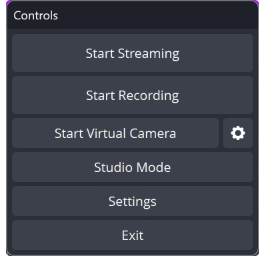
- Click Start Streaming or Start Recording
Tips for Best Quality
- Keep your SpatialChat room at full screen inside Chrome
- Use a 1080p canvas in OBS: Settings → Video → Base & Output Resolution: 1920x1080
- If you move between rooms, keep the same window open (same tab)
- Use a wired internet connection when possible
- For more dynamic streams, add overlays, lower-thirds, or screen transitions inside OBS
Need More Help?
If you have issues capturing SpatialChat, please reach out to our Support Team through the in-platform chat or via support@spatial.chat.